
We launch navigation on Mappy, we hit the road, and at the first roundabout, nothing: not a word, not an alert. The phone displays the map, the blue route is there, but the voice guidance remains silent. The problem rarely comes from the app itself. In most cases, it’s an audio setting on the phone, a misdirected Bluetooth mode, or a system setting that blocks the voice synthesis.
Phone audio profile: the setting that Mappy cannot control
Before touching anything in the app, we check the phone’s volume during navigation. On both Android and iOS, the “media” volume is separate from the ringtone volume. Increasing the sound with the physical buttons outside of navigation often adjusts the wrong slider.
The reliable method: start a route on Mappy, then press the side volume buttons. The slider that appears on the screen should correspond to the media or navigation stream. On some Android overlays (Samsung, Xiaomi), you need to expand the volume panel to see the media sound slider separate from the call and notification sliders.
A common trap on iPhone: the side silent mode switch also cuts off navigation voice instructions. You can still receive visual notifications and think the sound is working, while the audio output is physically muted. Flipping the switch and restarting the guidance usually restores the voice.
For those looking to activate sound on Mappy without results despite correct volume, the problem often lies a step further, in the Bluetooth settings or the TTS voice configuration.

Three sound modes in Mappy: which one is active on your screen
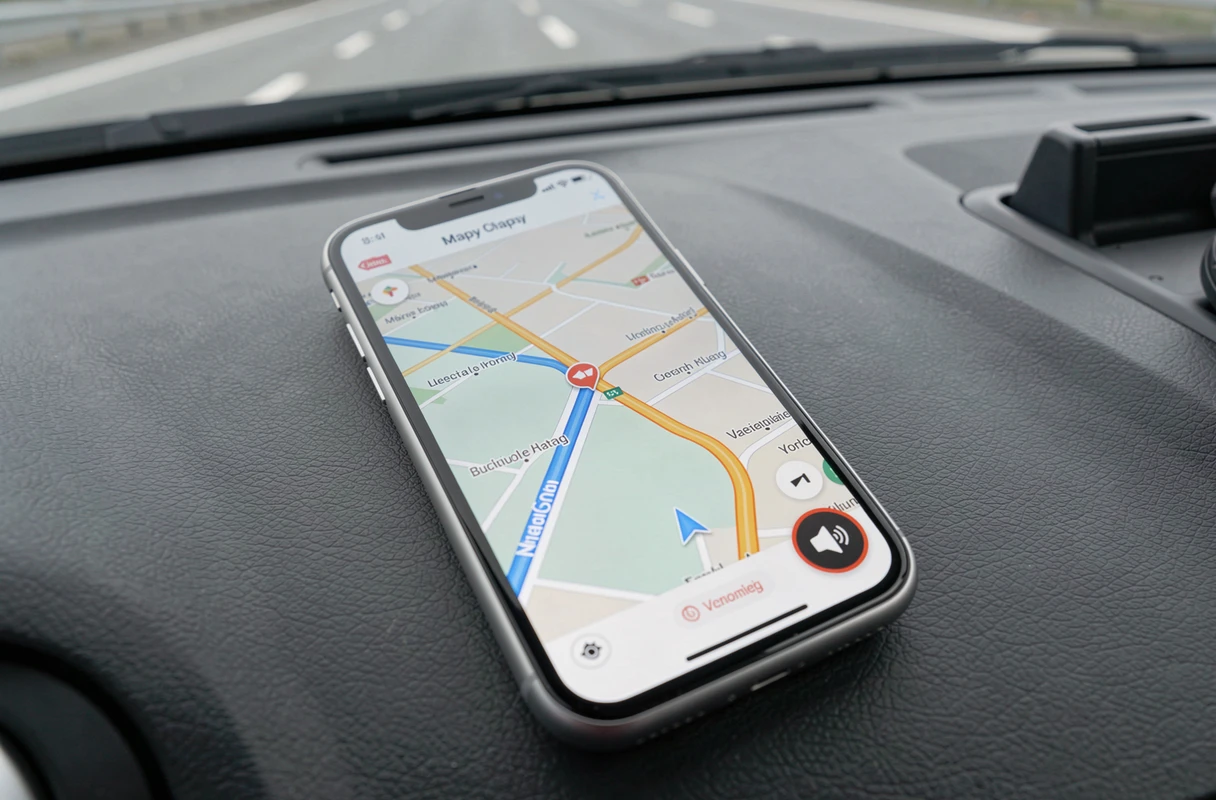
The speaker icon visible during navigation does not function as a simple on/off button. Mappy actually offers three distinct states, and confusing them explains many disappointments.
- Speaker crossed out (sound off): no audio output, no direction instructions, no radar or traffic alerts. Guidance is purely visual.
- Speaker with exclamation mark (alerts only): Mappy only emits alert signals (incidents, danger zones), but does not dictate turns or highway exits.
- Full speaker (full guidance): all voice instructions are active, in addition to alerts. This is the mode to select for continuous voice guidance.
You tap the icon to switch from one state to another. The change is immediate, with no need to restart the route. If you find yourself in “alerts only” mode without having chosen it, it’s often because you’ve brushed the icon while placing the phone on its holder.
Bluetooth and vehicle’s built-in system: the most underestimated source of friction
When the phone is connected via Bluetooth to the car’s audio system, Mappy’s voice instructions are supposed to come through the vehicle’s speakers. In practice, it depends on the installation.
First case: the navigation sound is indeed routed to the car radio, but the Bluetooth source volume is set very low on the vehicle side. You can hear the music correctly because you’ve raised the media volume, but the GPS navigation stream uses a separate audio channel on some built-in systems. You need to adjust the volume while a voice instruction is being issued, not during music playback.
Second case: Bluetooth is connected, but the phone sends the navigation sound to its own speaker instead of transmitting it to the vehicle. On Android, check in the phone’s Bluetooth settings that the “media audio” output is enabled for the paired device. On iOS, the switch sometimes happens automatically, sometimes not, depending on the car radio model.
Force sound through the phone’s speaker
If the car’s system does not properly play the instructions, the quickest solution is to temporarily disable Bluetooth on the phone. The sound from Mappy immediately switches back to the internal speaker. You lose playback through the vehicle’s speakers, but you regain audible guidance. Feedback on this point varies depending on car models and Android versions.
Missing TTS voice or in a foreign language: configure voice synthesis
Mappy does not have its own voice engine. The app uses the text-to-speech (TTS) voice installed on the phone’s operating system. If no French voice is installed, or if the default voice is in another language, Mappy remains silent or pronounces instructions in an incomprehensible manner.
On Android, the setting is found in Settings > System > Language & input > Text-to-speech (the exact path varies by manufacturer). You check that the selected TTS engine (Google, Samsung, or other) has a French voice downloaded. Pressing “Listen to an example” confirms that the engine is working.
On iOS, the path is Settings > General > Accessibility > VoiceOver > Speech > Default dialect. You select French. Changing the TTS voice does not require reinstalling Mappy: you just need to exit the app and relaunch it for the new voice to be recognized.
Quick checklist when Mappy isn’t speaking
Rather than testing everything blindly, proceed in this order, from the most likely to the least frequent:
- Check that the silent switch (iPhone) is off or that Do Not Disturb mode is disabled.
- During guidance, raise the volume with the physical buttons and confirm that the media slider moves.
- Tap the speaker icon in Mappy and ensure it is in full guidance mode (not in alerts only or muted).
- If Bluetooth is active, test by disabling it to isolate the source of the problem.
- Check in the system settings that a French TTS voice is installed and selected.
This diagnostic path covers the vast majority of cases. If sound remains absent after these five steps, uninstalling and then reinstalling Mappy allows you to start with the app’s default settings, including audio output.